

WCAG Accessibility 6: ARIA Roles & Semantic HTML
In the previous post, we focused on keyboard navigation and improving focus visibility across the site.
In this post, we look at how semantic HTML and ARIA help improve the experience for screen reader users.
Read WCAG Accessibility 5: Improving Keyboard Navigation
In this sixth post in our WCAG accessibility series, we focus on improving the experience for screen reader users by using semantic HTML and ARIA (Accessible Rich Internet Applications) attributes.
While visual improvements such as colour contrast and layout are important, accessibility also depends heavily on how content is structured behind the scenes.
As part of our work on the Rainbows Ireland website, we reviewed and improved the underlying markup to ensure it is correctly interpreted by assistive technologies.
Why Semantic HTML Matters
Semantic HTML provides meaning to content. It allows screen readers to understand a page’s structure and present it logically to users.
For example:
<header>,<nav>,<main>, and<footer>define page regions<button>is used for actions<a>is used for navigation
Using the correct elements reduces the need for additional accessibility fixes.
Issues Identified on the Rainbow’s Website
During our audit, we identified several structural issues affecting screen reader users:
- Use of generic
<div>elements instead of semantic elements - Missing or incorrect heading hierarchy
- Buttons implemented as clickable non-semantic elements
- Missing labels and descriptions for interactive components
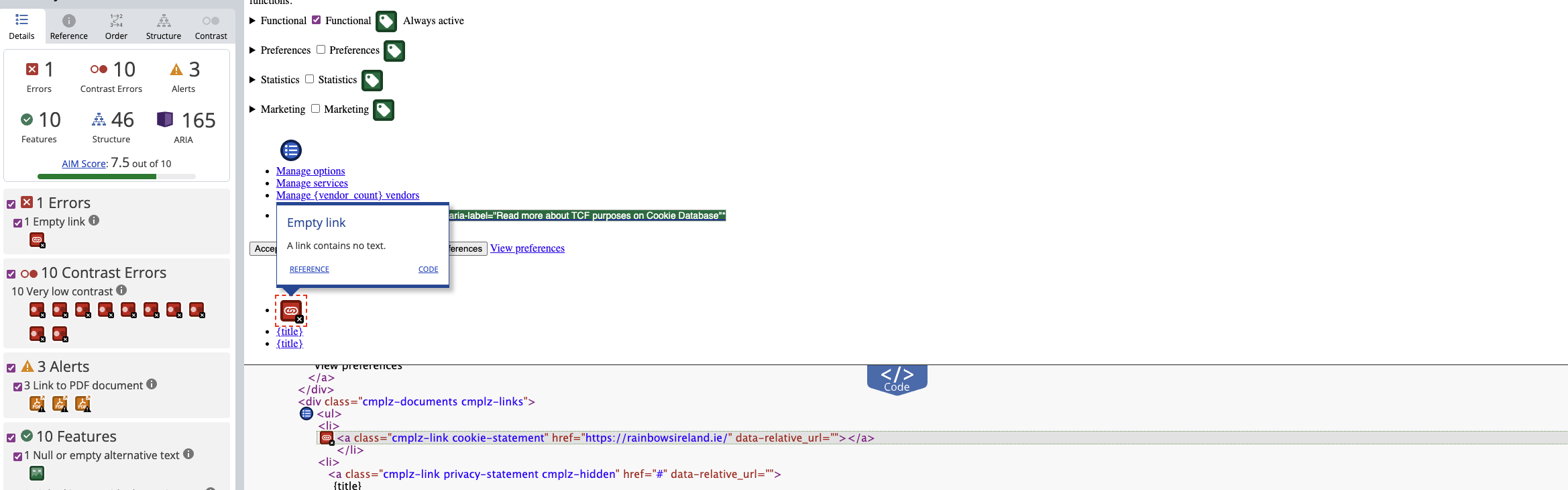
The screenshot below highlights structural accessibility issues identified during the review, including non-semantic markup and missing landmarks.
What is ARIA?
ARIA (Accessible Rich Internet Applications) attributes are used to enhance accessibility when HTML alone is not sufficient.
They provide additional information to assistive technologies, such as roles, states, and properties.
However, ARIA should be used carefully — the first rule of ARIA is:
“Don’t use ARIA if you can use native HTML instead.”
How We Fixed the Issues
1. Replacing Non-Semantic Elements
We replaced clickable <div> and <span> elements with proper semantic elements such as <button> and <a>.
2. Fixing Heading Structure
We ensured that headings follow a logical hierarchy (H1 → H2 → H3), allowing screen reader users to navigate content effectively.
3. Adding ARIA Labels Where Needed
In cases where additional context was required, we added ARIA attributes such as:
aria-labelaria-describedbyaria-expanded
4. Improving Navigation Landmarks
We ensured that key page regions are clearly defined, helping users jump between sections using assistive technologies.
5. Supporting Screen Reader Announcements
Dynamic elements such as form validation messages and modal content were updated to ensure they are announced correctly.
Tools Used
- Screen reader testing (e.g. VoiceOver)
- Browser developer tools
- WAVE Accessibility Tool
Key Takeaways
- Semantic HTML should always be the first choice
- ARIA enhances accessibility but should not replace proper markup
- Correct structure improves navigation for screen reader users
- Accessibility is as much about code structure as visual design
Next Steps
In the next post, we’ll explore accessibility considerations for images, media, and alternative text.